Welcome to Studio.

A place to put your ideas together. Choose artwork, add your words and arrange every layer. Save a project to continue later, or download a finished design.

500 Featured artworks
2,000 Vector elements
60 Text styles
Back to page

My Clipart Project

Saving & privacy
File
Your blank canvas is ready. Add a shape, draw, or choose a starter. Changes are saved on this device.
No object selected
Your canvas is ready Choose artwork, add text, or start drawing.
100%

Select a shape or layer. Shift-click adds to your selection. Drag the corner handles to resize. Use Pan to move around a zoomed canvas.

Find a Tool

Search actions, or choose a category.

Changes to artwork support Undo. View preferences do not alter downloaded artwork.

Studio Information


Download & Print

Name your design, choose a format, then download or print.

File format

WebP keeps transparent areas and uses RGB colors.

Paper & Print Settings

Used for PDF, Word and printing.

Made in Clipart Studio

Technology, school, music, sport, celebrations and more.

Open one of 18 editable projects. Pictures, headings, frames and layout details stay on separate layers, ready for your own ideas.

Explore simple vector starters

PICK A STARTING POINT

A head start for your next idea.

Scroll to explore all six starters. Every piece is editable. Starting again can be undone in the workspace.

How to Use Clipart Studio

Find artwork, edit your design and save the right file in three steps. Explore 49,858 artworks across the full library.

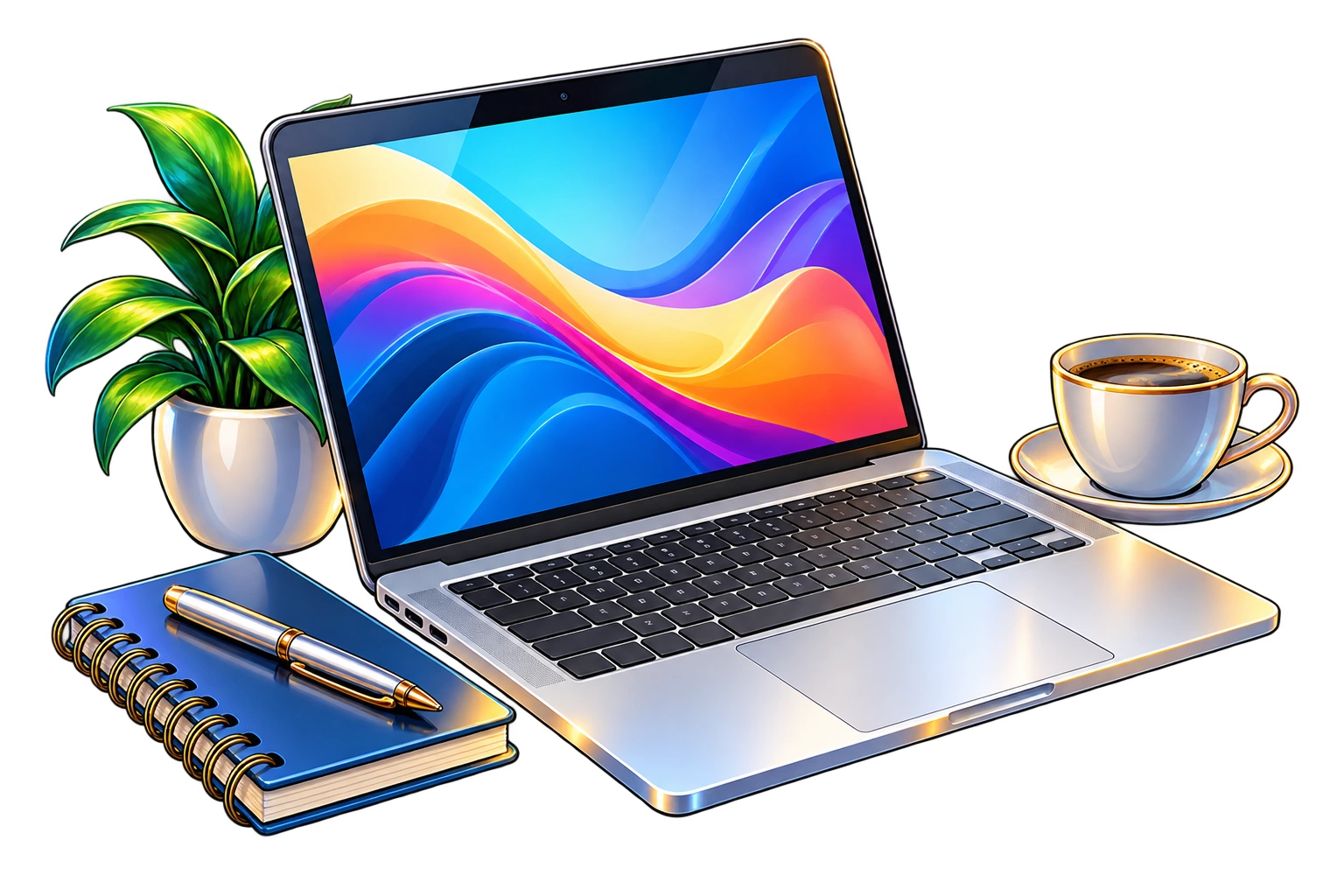
  1. A silver laptop displays colorful abstract waves.
    Elements control cropped from an actual Studio screenshot. Elements → Artwork
    A published catalog example above a crop of real site controls. The artwork is separate from the captured interface.
    01 · CHOOSE ARTWORK

    Find an Image & Add It

    Choose a picture from the catalog or begin with one of the ready-made designs above.

    1. Search the library

      Open Elements, choose Artwork and search for a subject such as laptop, robot or guitar. Use Subject and Visual style to narrow the results.

    2. Add your picture

      Select a thumbnail to place the image on the canvas. Each added picture is one image layer.

    3. Build the composition

      Add another picture, choose Vector shapes or import your own PNG / WebP. Leave space for a heading.

  2. A small white robot with glowing blue eyes reaches one hand forward.
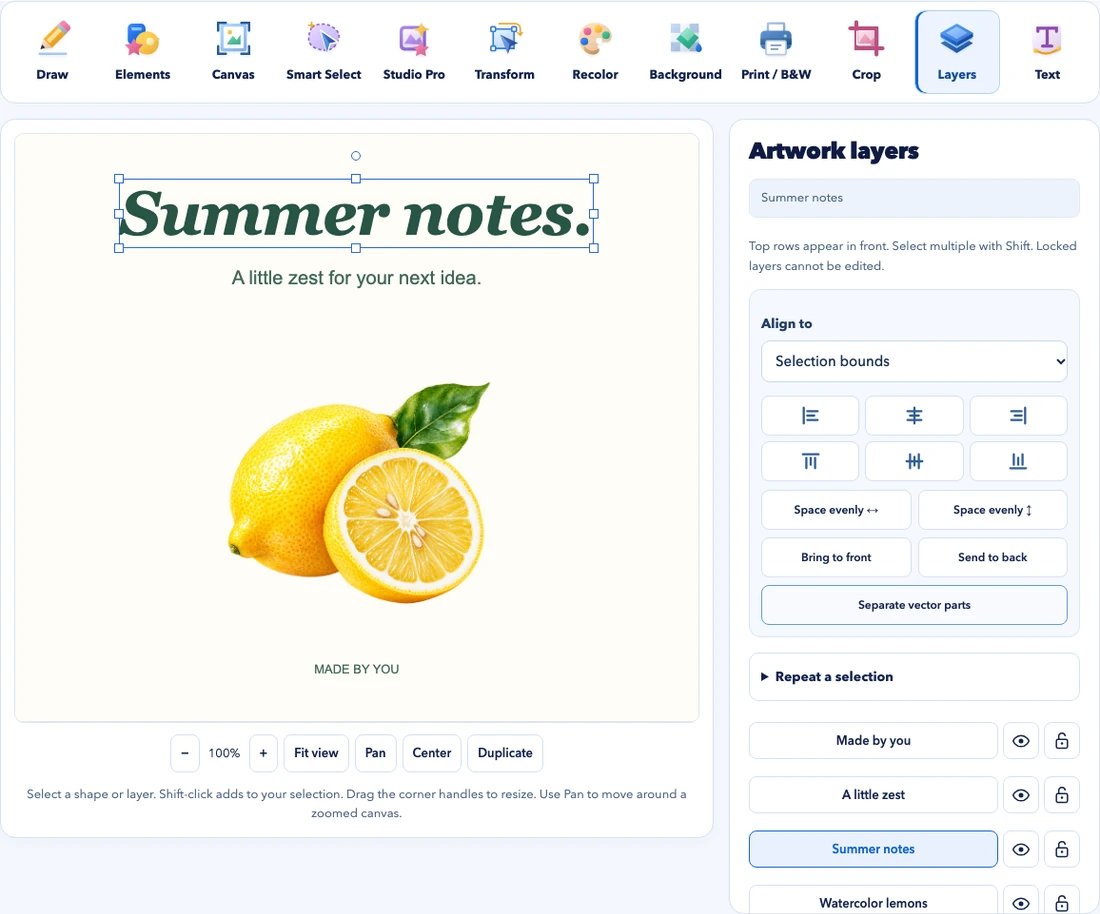
    Layers and Text controls cropped from an actual Studio screenshot. Layers & Text
    A published catalog example above a crop of real site controls. The artwork is separate from the captured interface.
    02 · ARRANGE & PERSONALIZE

    Edit Layers, Words & Colors

    Keep pictures, added text and shapes on separate layers so you can adjust them individually.

    1. Arrange with Layers

      Select a picture, move it and drag its corner handles to resize it. Use Layers to change which object appears in front.

    2. Add your own words

      Open Text, write a heading and use Add / update text. Adjust the font, size, color or a text style.

    3. Refine the colors

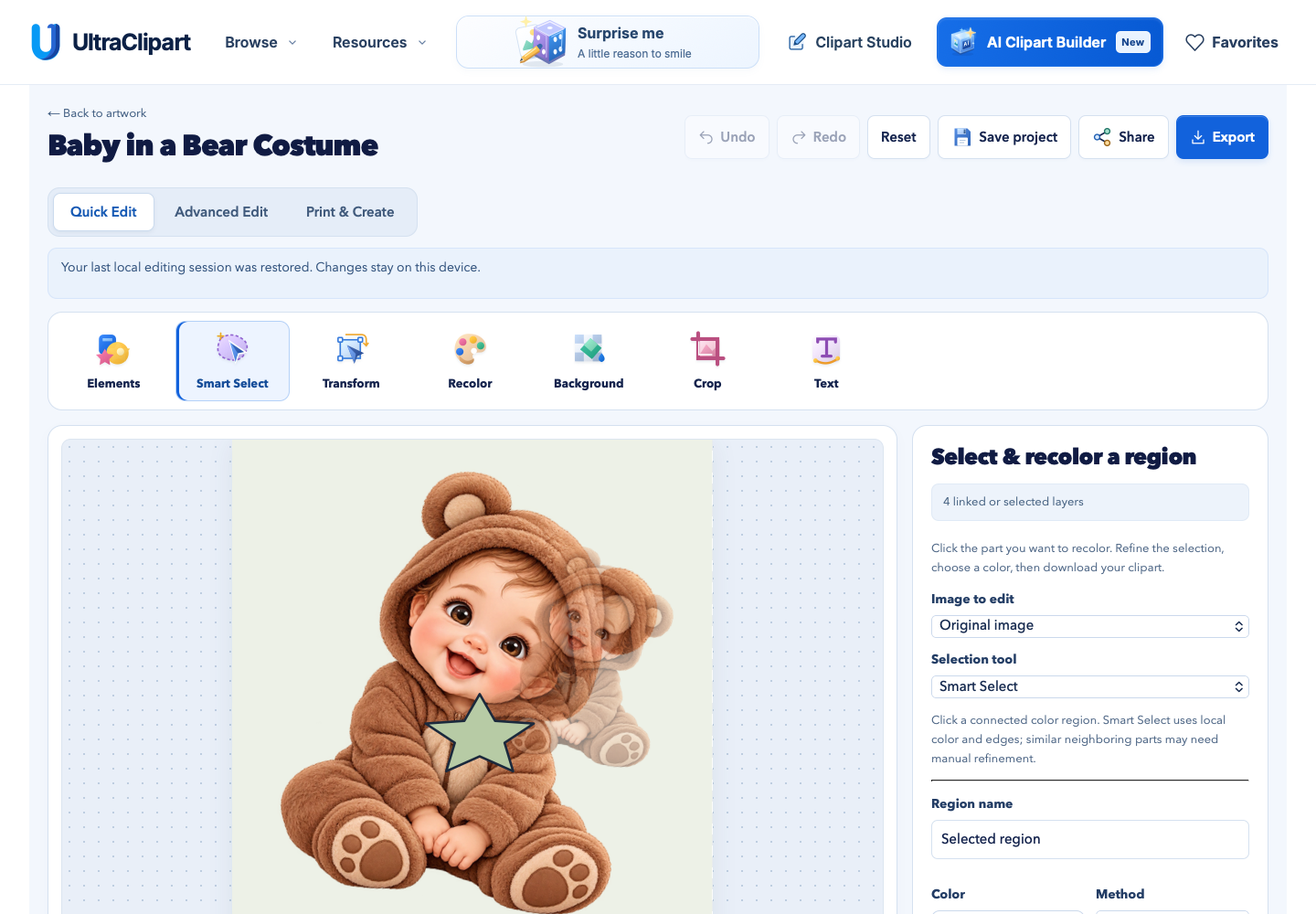
      Use the color picker or HEX entry for backgrounds and vectors. For a region inside a picture, use Smart Select. Undo reverses a change.

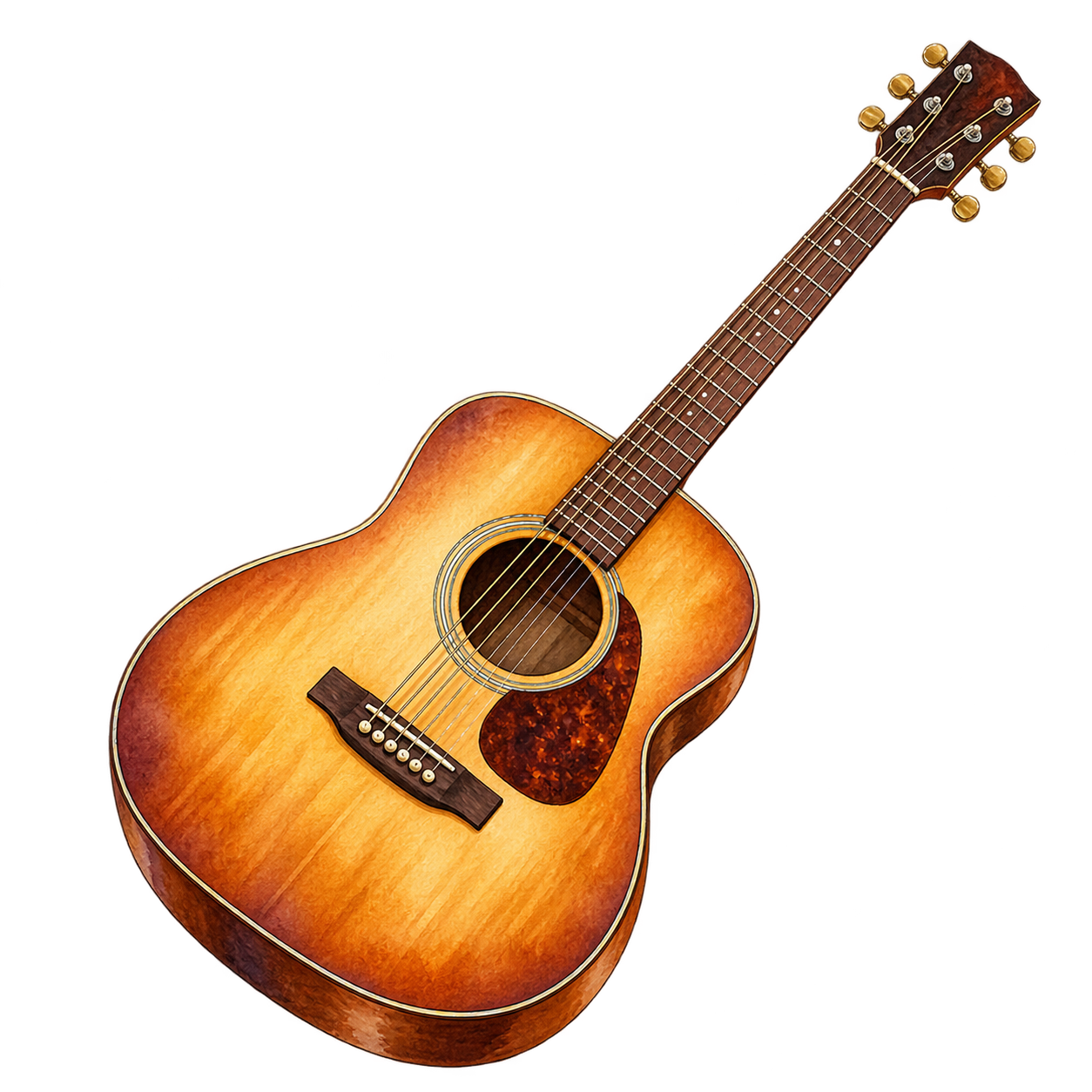
  3. A honey-colored acoustic guitar tilts diagonally with its sound hole and dark pickguard visible.
    Save project, Share and Export buttons cropped from an actual editor screenshot. Save project & Export
    A published catalog example above a crop of real site controls. The artwork is separate from the captured interface.
    03 · SAVE & DOWNLOAD

    Keep a Project & Export a File

    An editable project and a finished download serve different purposes. Keep the files you need.

    1. Save an editable copy

      Save project downloads a project file with its layers. Use Open saved project when you want to continue later.

    2. Prepare the output

      Open Export, name your project, and choose PNG, JPG, WebP, SVG, PDF or Word. Paper & Print Settings controls the page size, orientation and margins.

    3. Download your design

      Download your chosen format or use Print Design. Word contains the finished design as one image. Keep an editable project copy if you want to change its layers later.

The tool images are crops of real JotClipart screenshots. Select one to view its original capture; the artwork examples come from the published catalog.

Studio Questions

Clear choices for creating, saving and printing your clipart.

See All Project Guides
How do I make my own clipart?

Choose an image in the artwork library, open a ready-made composition, or draw on a blank canvas. Add text and other elements, then use Layers to arrange your design. Use Smart Select for image regions and Recolor for vector colors.

Can I make stickers and coloring pages?

Yes. Studio Pro includes sticker borders, coloring-page controls and printable layouts. Complex images may need manual cleanup. Review your output before printing; the print size calculator helps you choose a suitable size.

Which file should I download?

Choose PNG or WebP to keep transparent areas, or JPG for an image with a white background. SVG preserves scalable shapes and text; included pictures keep their original pixel resolution. PDF is prepared for CMYK printing. Word places your finished design as one image in a DOCX document. Use Save Project to keep your individual layers editable in Studio. Read the download format guide for details.

Do I need an account or a paid tool?

No account is needed for the studio. Editing runs in your browser. Your device's memory and the source image resolution determine the size and complexity of projects you can comfortably create.

SAVE YOUR WORK

Private on your device.

Your imported files and edits are processed locally. Download an editable project to keep a reliable copy; clearing browser data removes local recovery. Sharing a file is your choice. Creating a public share link uploads only the finished image and its title, after you explicitly choose to publish it.

How local editing works
Artwork Permissions

Know what you can use.

Your original work remains yours. JotClipart artwork and templates are for personal and educational use. Import only artwork you have permission to use.

Read the artwork license